Basically most of the games use images to show stuff. The following tutorial teaches how to load image and show on screen .
To display an image on screen you need to know the following : Sprites and Textures
Sprites are the drawable things on screen. The are like a imaginary surface over which you paste the textures.
Textures are the image that you wanna show.
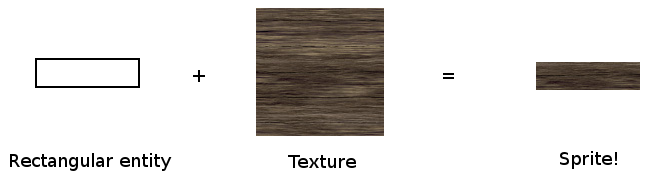
Snippet to show image :
sf::Sprite *bgsprite; // a pointer for sprite
sf::Texture bgtex; // bgtex to store the texture

if(!bgtex.loadFromFile("Assets/image.png")) // loads image as texture into bgtex
{
  std::cout<<"\nError loading image";
}
bgsprite=new sf::Sprite();  // creating sprite object
bgsprite->setTexture(bgtex);   // you set the texture to the sprite

// if you wanna clip a particular area from the texture and put into the sprite you can // use the following setTextureRect() function

bgsprite->setTextureRect(sf::IntRect(0,0,800,600));

window->draw(*bgsprite); //drawing sprite on window
So now its time to create a small tank game. In this tutorial we’ll display background and a tank and
make it move in all 4 directions.
1. Create a project.
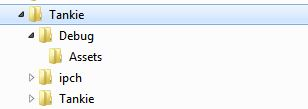
2. Create a folder named as Assets inside the Debug folder . Debug folder is inside your project’s folder.
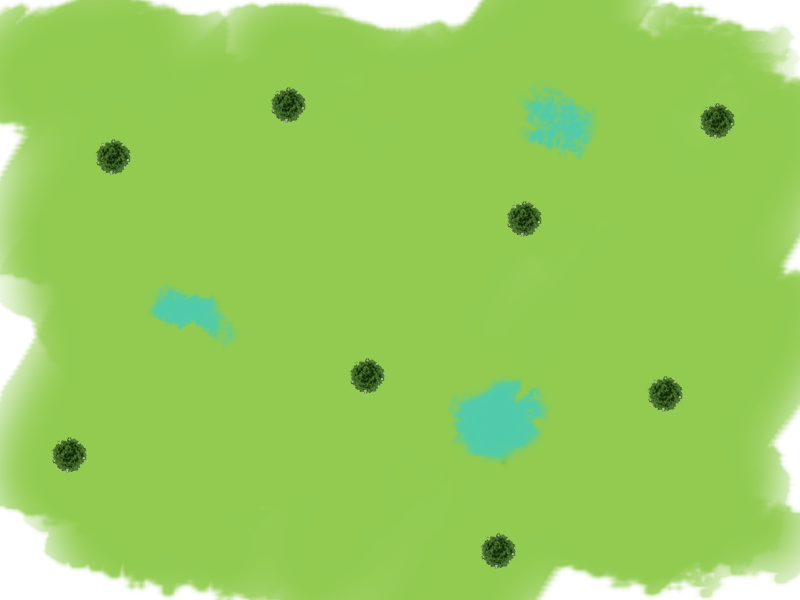
3. Put the following images inside the Assets folder. The following are sample. Original images are in the link given below.
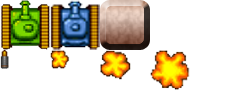
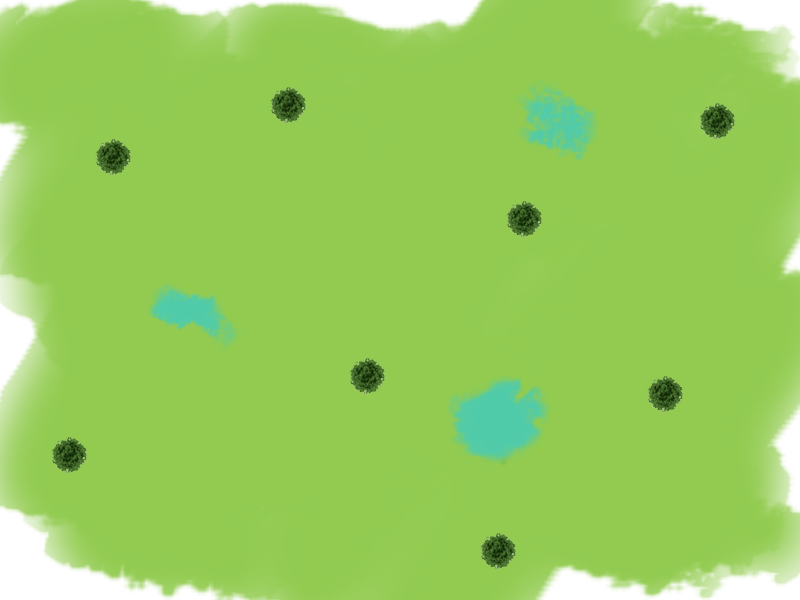
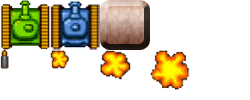
Highlighted is the project folder.
The following is the code for moving a tank on a background.
Main.cpp
#include "iostream"
#include <SFML/Graphics.hpp>
#include "Tank.h"

int main()
{

  sf::RenderWindow *window;
  window=new sf::RenderWindow(sf::VideoMode(800, 600), "Tankie!");
  window->setFramerateLimit(20);

  //Sprite for displaying Background Image
  sf::Sprite *bgsprite;
  sf::Texture bgtex;
  if(!bgtex.loadFromFile("Assets/tankmap1.png"))
  {
    std::cout<<"\nError loading background";
  }
  bgsprite=new sf::Sprite();
  bgsprite->setTexture(bgtex);
  bgsprite->setTextureRect(sf::IntRect(0,0,800,600));

  //Creating new hero tank
  Tank *herotank=new Tank(400,500,true);

  while (window->isOpen())
  {
    sf::Event event;
    while (window->pollEvent(event))
    {
      if (event.type == sf::Event::Closed)
        window->close();

    }

    herotank->handle_input();
    herotank->update();

    //Displaying all on the window
    window->clear();
    window->draw(*bgsprite);
    herotank->display(window);
    window->display();

  }

  return 0;
}
Tank.h
#pragma once
#ifndef TANK_H
#define TANK_H

#include <SFML\Graphics.hpp>

//setting velocity as 10
const int VEL=10;

//to know what direction the tank is moving
const int UP=0;
const int DOWN=1;
const int LEFT=2;
const int RIGHT=3;

class Tank
{
public:

  sf::IntRect Box; // box to keep track of x and y of tank
  int xVel,yVel;  // to track x and y velocity of tank ( can be +ve or –ve )

  sf::Sprite *tanksprite; //sprite for displaying tank
  sf::Texture tanktex;  // texture to load tank image

  int rotate;  // to know which direction tank is moving. Can take values UP, DOWN, // LEFT and RIGHT

  Tank(void);
  Tank(int x,int y, bool type);
  ~Tank(void);

  void handle_input();  // to get users input
  void update();   // to update tank’s values
  void display(sf::RenderWindow *window);   // to display tank
  void setPosition(int x,int y);
};

#endif
Tank.cpp
#include "Tank.h"
#include "math.h"
#include "iostream"

Tank::Tank(void)
{
}

Tank::Tank(int x,int y, bool type)
{

  Box.width=Box.height=50;

  //loading the texture of tank from assets folder
  if(!tanktex.loadFromFile("Assets/props.png"))
  {
  std::cout<<"\nError loading tank image";
  }
  //creating sprite
  tanksprite=new sf::Sprite();
  //loading texture into sprite
  tanksprite->setTexture(tanktex);

  if(type==true)//if type==true then its hero tank
  {
    Box.left=x;
    Box.top=y;
    //clipping only the hero tank from the big spritesheet
    tanksprite->setTextureRect(sf::IntRect(0,0,50,50));
  }
  else // for enemy tank if used
  {
    Box.left=rand()%750;
    Box.top=rand()%300;
  	tanksprite->setTextureRect(sf::IntRect(50,0,50,50));
  }

  yVel=0; //x and y vel are 0 initially since tank is not moving
  xVel=0;
  rotate=UP; // by default the tank points up
}
Tank::~Tank(void)
{
}
void Tank::handle_input()
{

  if(sf::Keyboard::isKeyPressed(sf::Keyboard::Up))
  {
    yVel=-VEL;
    rotate=UP;
  }
  else if(sf::Keyboard::isKeyPressed(sf::Keyboard::Down))
  {
    yVel=+VEL;
    rotate=DOWN;
  }
  if(sf::Keyboard::isKeyPressed(sf::Keyboard::Left))
  {
    xVel=-VEL;
    rotate=LEFT;
  }
  else if(sf::Keyboard::isKeyPressed(sf::Keyboard::Right))
  {
    xVel=+VEL;
    rotate=RIGHT;
  }

}
void Tank::update()
{
  Box.top+=yVel; // updating tank’s x and y values
  Box.left+=xVel;
  yVel=0; xVel=0;
}
void Tank::display(sf::RenderWindow *window)
{
  //rotating the sprite according to direction of movement
  if(rotate==UP)
    tanksprite->setRotation(0);
  else if(rotate==DOWN)
    tanksprite->setRotation(180);
  else if(rotate==LEFT)
    tanksprite->setRotation(270);
  else if(rotate==RIGHT)
    tanksprite->setRotation(90);

  tanksprite->setPosition((float)Box.left,(float)Box.top);
  window->draw(*tanksprite); //drawing tank on window

}
void Tank::setPosition(int x,int y)
{
  Box.left=x;
  Box.top=y;
}
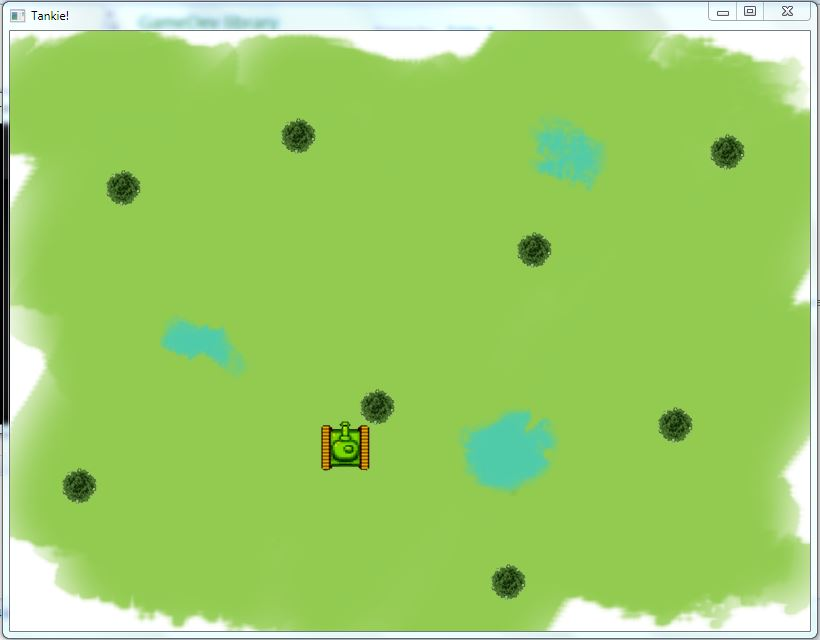
You’ll get an output window similar to the following with tank that can be moved using arrow keys
You can also find this on our Github: Tank-Game